
Hey, everyone! 👋🏽 The Beeper team is here to share what we’ve got going on. Let’s dive in!
Viber joins the conversation
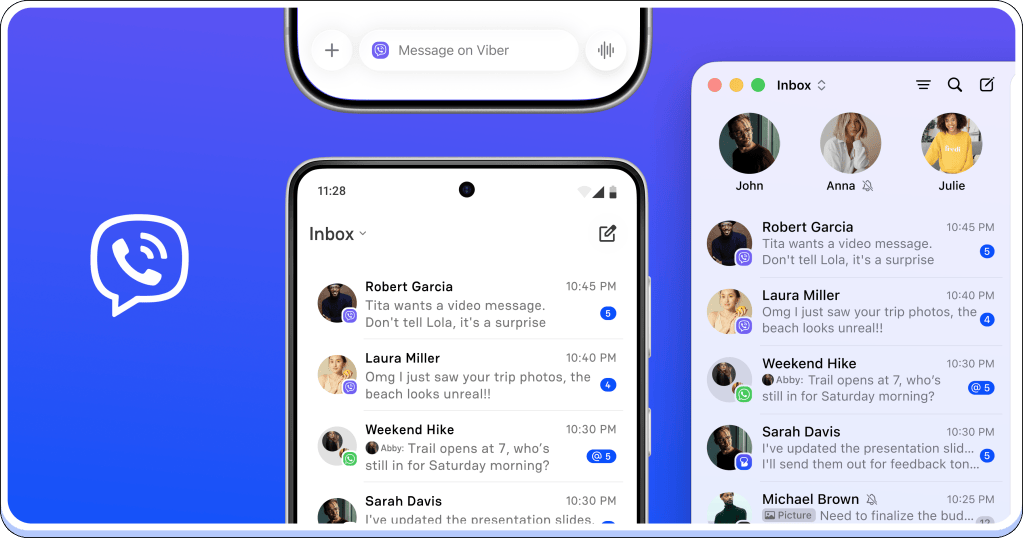
There’s always that one conversation that keeps you switching to another app. If yours is on Viber, you can now bring it into Beeper.
Connect your Viber account and keep those chats alongside your other conversations. One less app to bounce between.
Drafts on the go
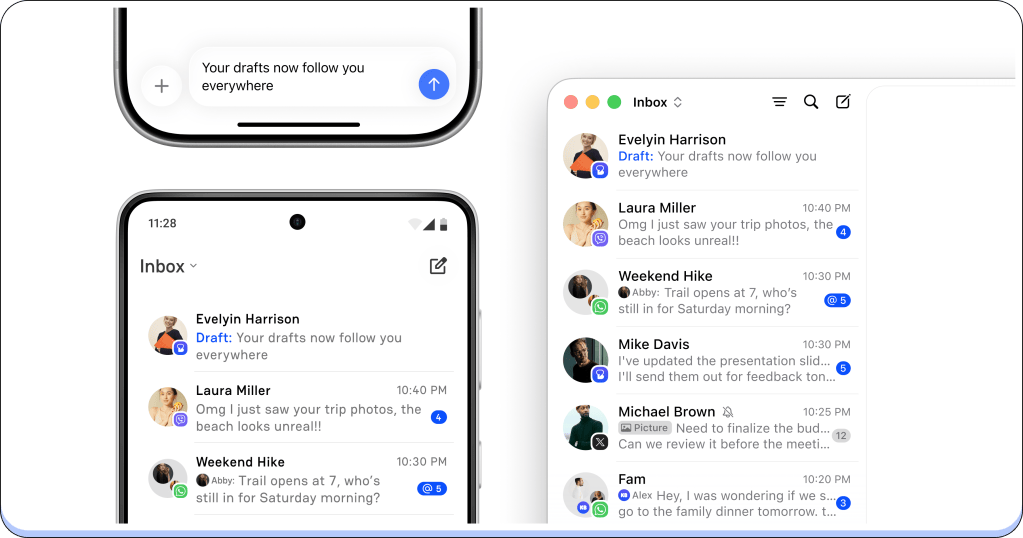
Some replies start on your phone and turn into something you’d rather write with a keyboard. Now you can make that switch without starting over.
Text drafts sync across your Beeper devices. Start writing in a chat, then open that conversation on another device and continue where you left off. It works the other way around, too, when you’re leaving your desk with a reply still unfinished.
This first version syncs text drafts. Attachments and their captions don’t sync yet.
Bookmark the message you’ll need later
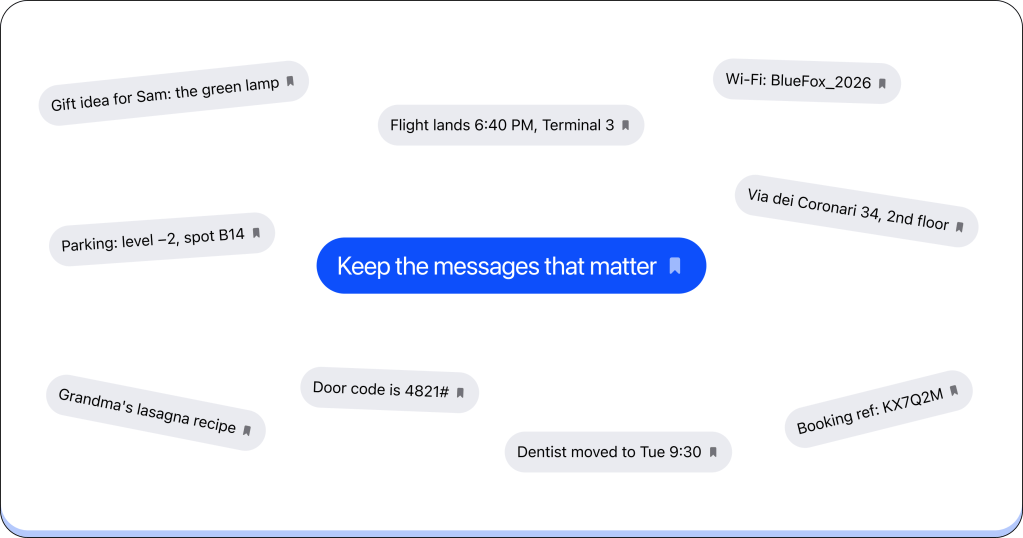
You can now bookmark messages in Beeper and come back to them when you need them. Your bookmarks are private to you and sync across your Beeper apps.
How? We’ve made it easy. On your phone, long-press a message and tap Bookmark. On desktop, right-click the message and choose Bookmark.
A different look for desktop
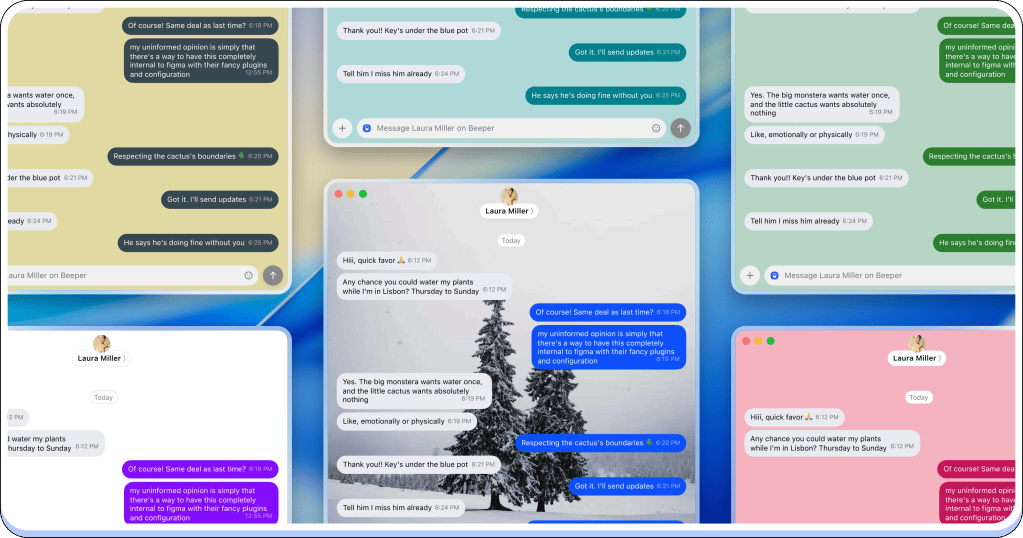
Presenting Chat Themes, now on desktop! We all love to customize our chats. You can now change the colors and backgrounds of your chats, choose a default look for Beeper, or give individual conversations their own style.
Maybe you want a quieter background while you work. Maybe the group planning your next trip deserves some color? You can make that choice, chat by chat, without changing the look of everything else.
Set your default in Settings → Appearance → Chat Appearance. To customize a single chat, click its header to open Chat Info, then select Edit in the top-right corner and choose Chat Theme.
Names that mean something to you
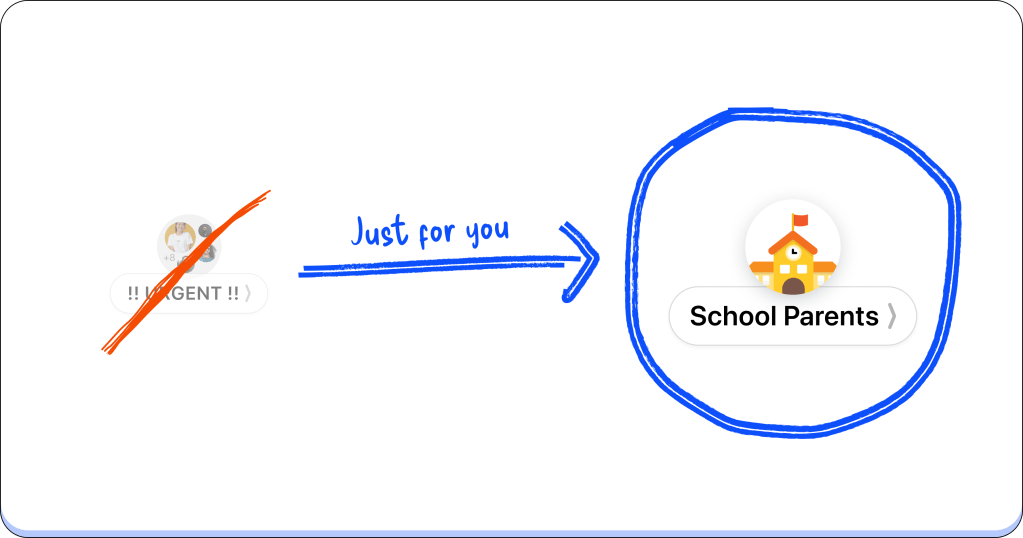
Some group chats get a new name every week. Others are still named after a trip from two years ago. You can now give them a name that makes sense in your inbox.
Beeper Nicknames let you give any chat a custom name and photo. Use the name you actually call someone, or rename a group around what you use it for. Only you can see your changes, and they sync across your Beeper apps.
Open Chat Info, then:
- On iOS, tap Edit → Customize for Me
- On Android, tap the chat name → Set Custom Chat Name For Me. Use the photo icon to set a custom picture
- On desktop, select Edit in the top-right corner and choose Edit for Me
Google Voice, now on Beeper Cloud
Setting up a new device shouldn’t mean signing in to everything all over again. Google Voice now works with Beeper Cloud, so you can connect your account once and have your conversations available across your Beeper devices.
Whether it’s your work number or the one you give out when you’d rather keep your personal number private, your Google Voice chats can come with you. One connection, wherever you use Beeper.
Give these a try, and let us know what you think. Coming soon: a little more ‘we,’ a little more ‘group,’ and room in the cloud for a second you. Stay tuned.
G and the Beeper team


Leave a comment